Set up a New Security Token

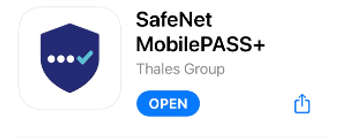
Step 1: Download the mobile app "SafeNet MobilePASS+" on your mobile device.
Step 2: Launch your mobile app ("MobilePASS+").
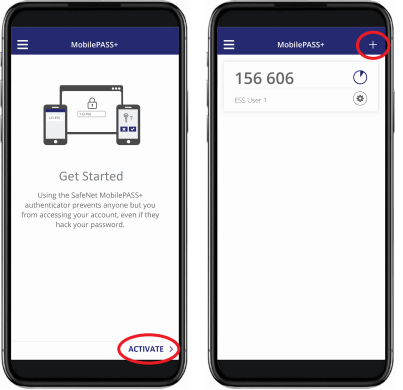
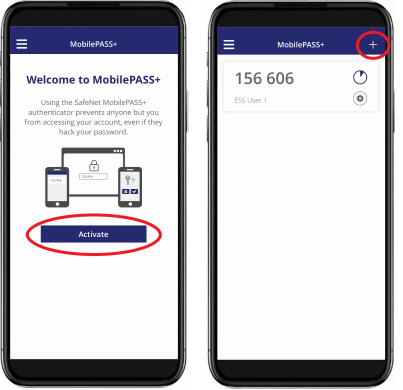
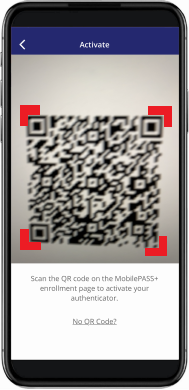
Step 3: Tap "Activate" or "+" to create a new security token.
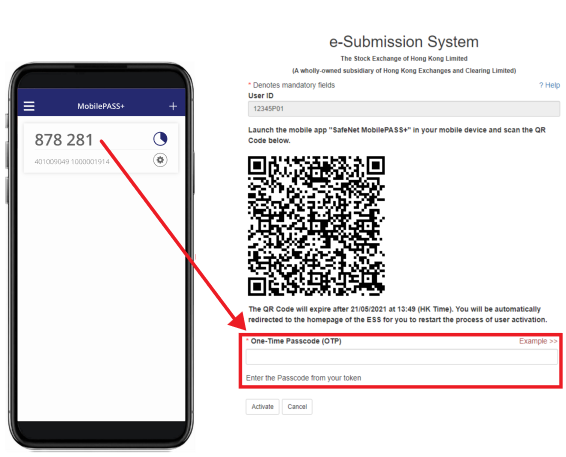
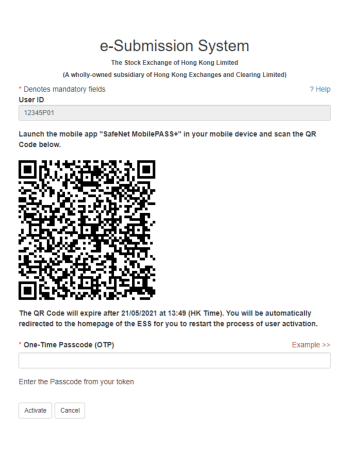
Step 4: Scan the QR Code on the ESS webpage with your MobilePASS+. (Note: The QR Code will expire after 10 minutes. You will then be redirected to the ESS homepage automatically to restart the user activation.)
Google Play App Store
 
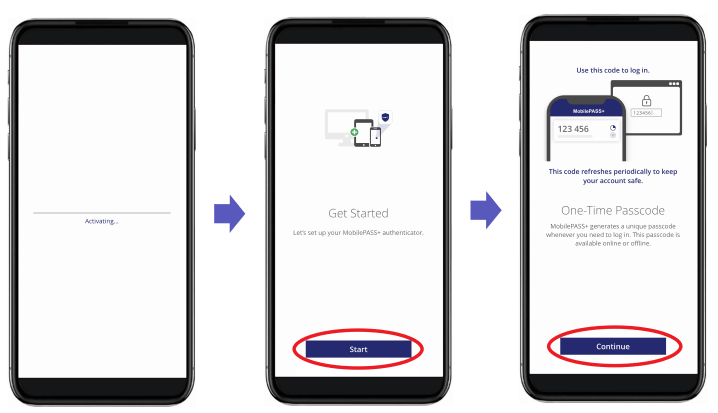
Step 5: The token setup starts automatically. Follow the instructions on the screen, tap "Start" and "Continue".
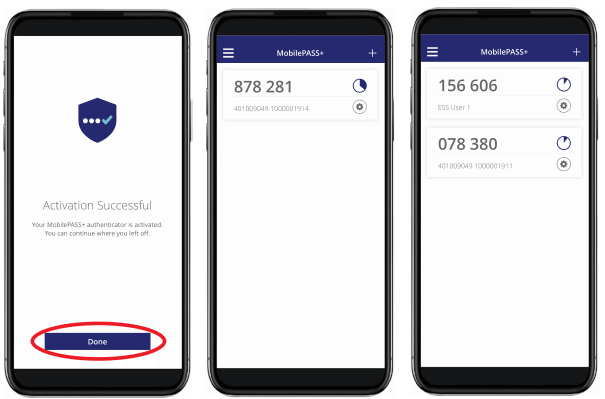
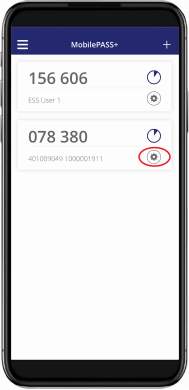
Step 6: You'll get a confirmation message after you've successfully set up your token. Tap "Done" to get a One-Time Passcode (OTP). (Note: If you have more than one token in your MobilePASS+, the new token will appear at the bottom of the list.)
Step 7: Input the One-Time Passcode (OTP) generated from your security token to ESS webpage. Then, click "Activate" to complete the user activation.
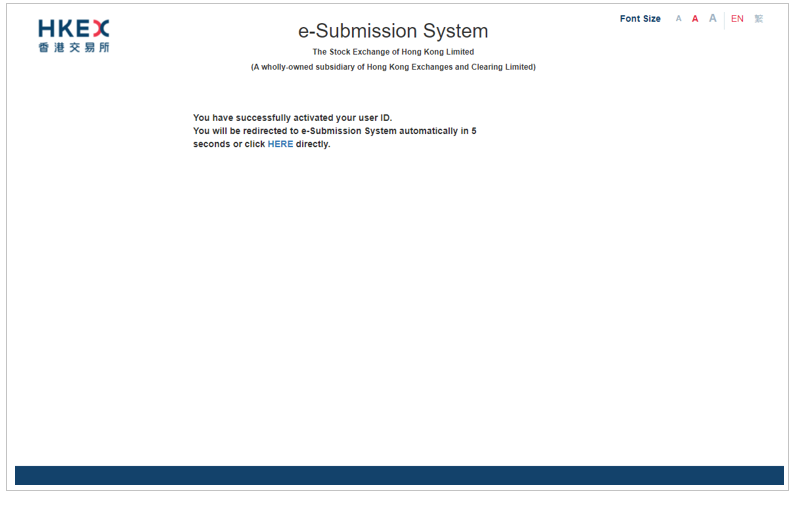
Step 8: If your user account has been activated successfully, an acknowledgement page will be displayed on ESS webpage.

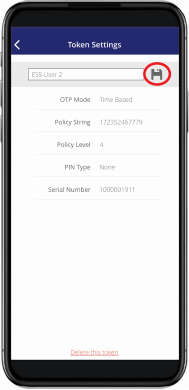
Rename your token

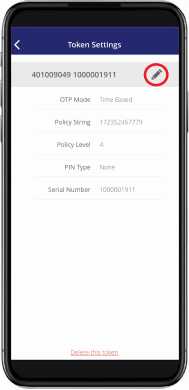
Go to Token Settings Tap to rename your token Tap to save

Note: The screen displays and the images of the website are for reference and illustration purposes only.